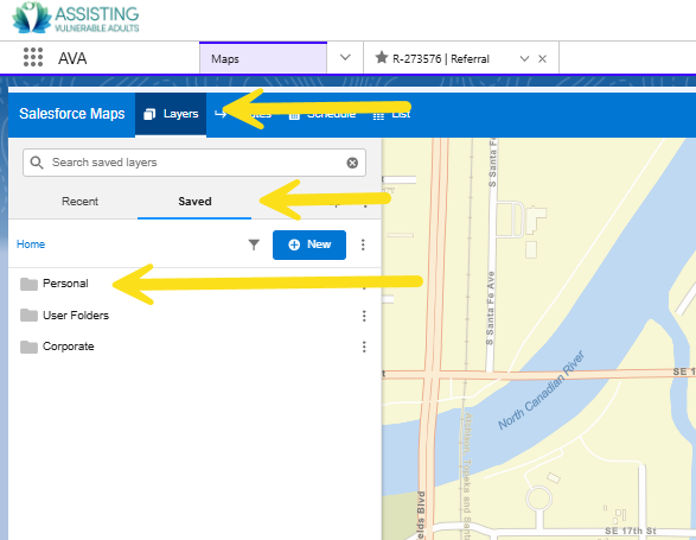
- Favorite Location: In Salesforce Maps, Click the “Layers” tab, then click the “Saved” tab below layers, and finally Select the “Personal” folder.
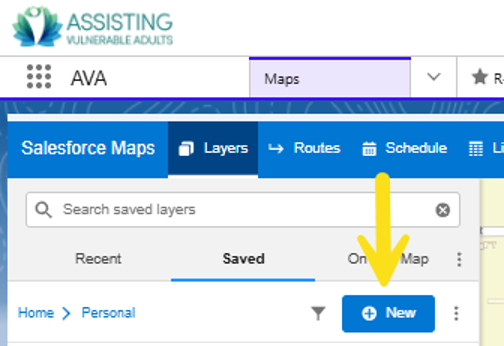
- Click “New”
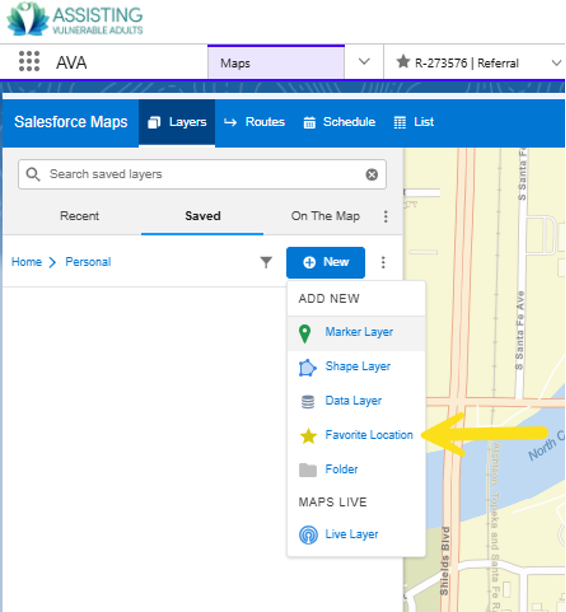
- Select “Favorite Location”
- Complete the Name and Address of the Favorite Location and choose the Marker Color. Click “Save.”
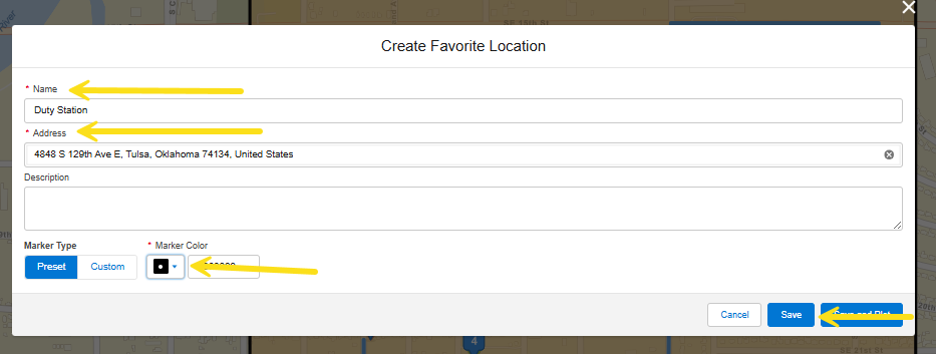
- Now the Favorite Location can be typed in the route. Select the routes tab. Click “Add Start Location.” Type the name of the Favorite Location in the search box. This also works for “Add End Location” shown at the end of the route.
- Additional Locations: To add other stops, select “Add a Stop” or use the Search. These options accept specific addresses or generic locations (ex: “gas stations.”) When using the Search for a generic location, type the generic location (ex: “gas stations”) and select the option from the search results and click “Add to Route” to add it to the route. When using the “Add a Stop” option, for a generic location, type the location and select the best option from the list and Maps will automatically add it to the route.

- IMPORTANT NOTE: If additional locations are added after “Optimize” was selected, “Optimize” will have to be selected again to include the additional locations.
Instructions for adding default settings
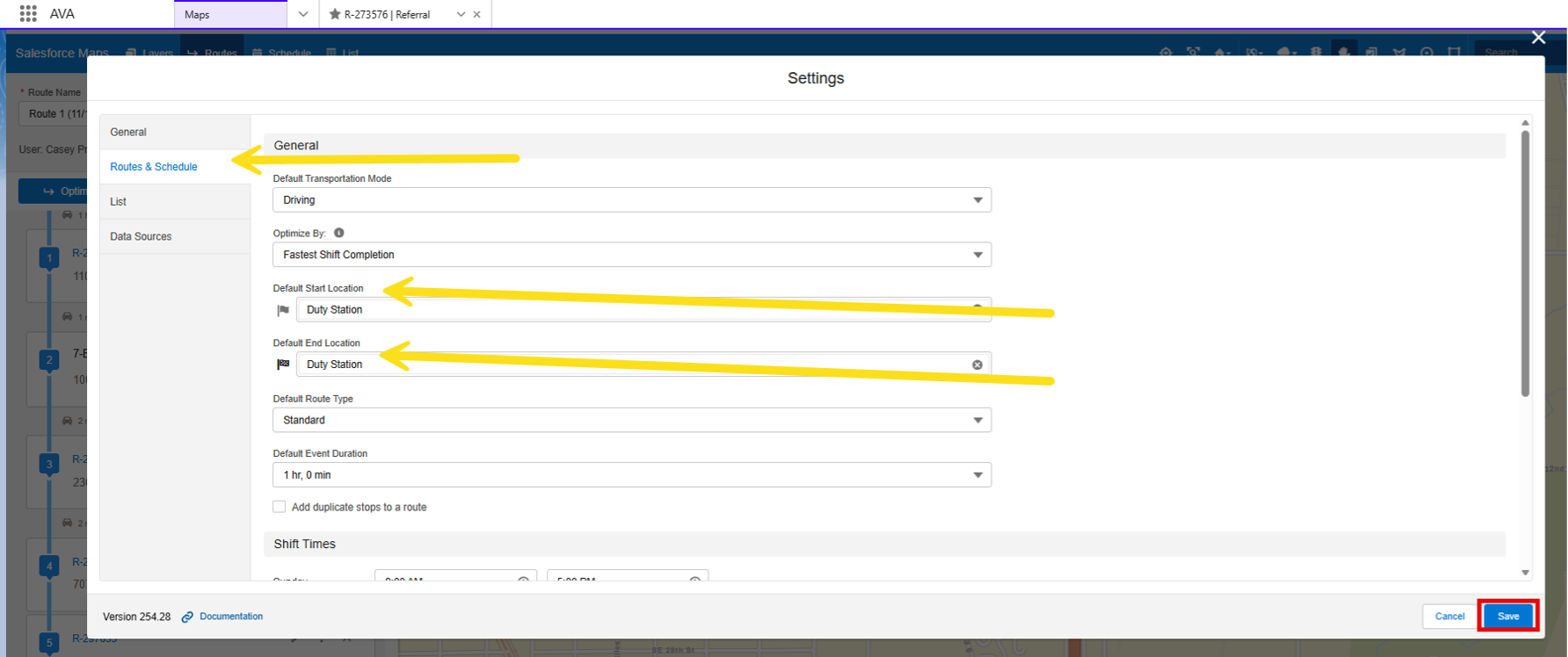
- Click the settings gear in the top right
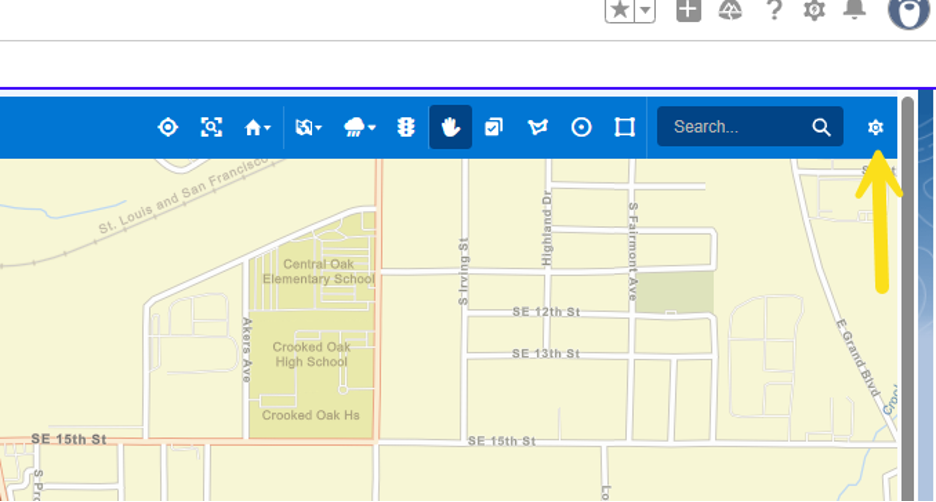
- Select “Routes and Schedules,” Add a Default Start Location and Default End Location that will populate every time a route is created. Click “Save.”