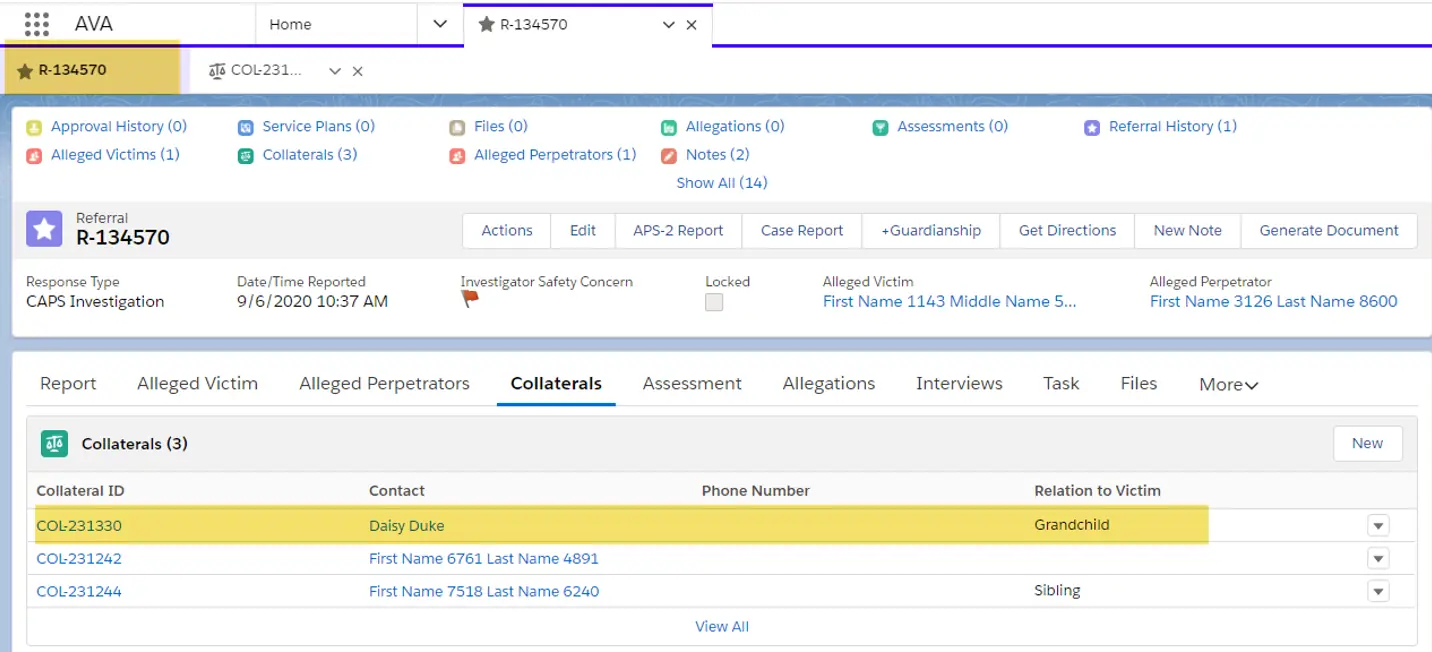
- Locate the case for which you are wanting to add a new collateral. Click the
Referral ID.

- Select the
Collateraltab.
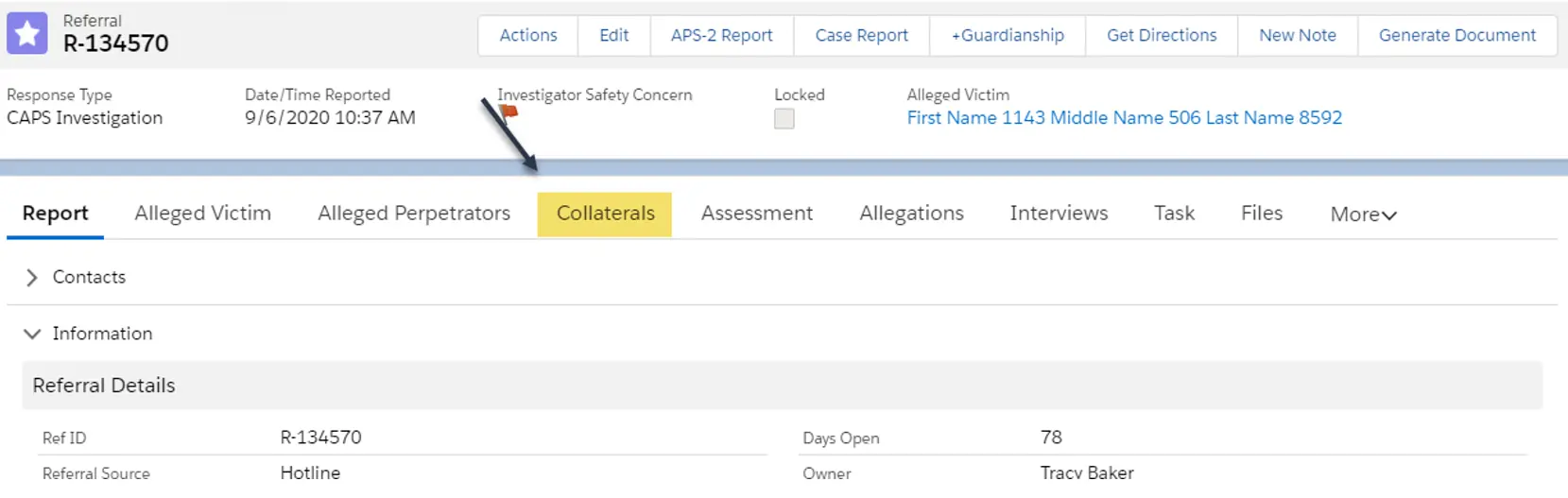
- After clicking into the
Collateralstab, clickNew.
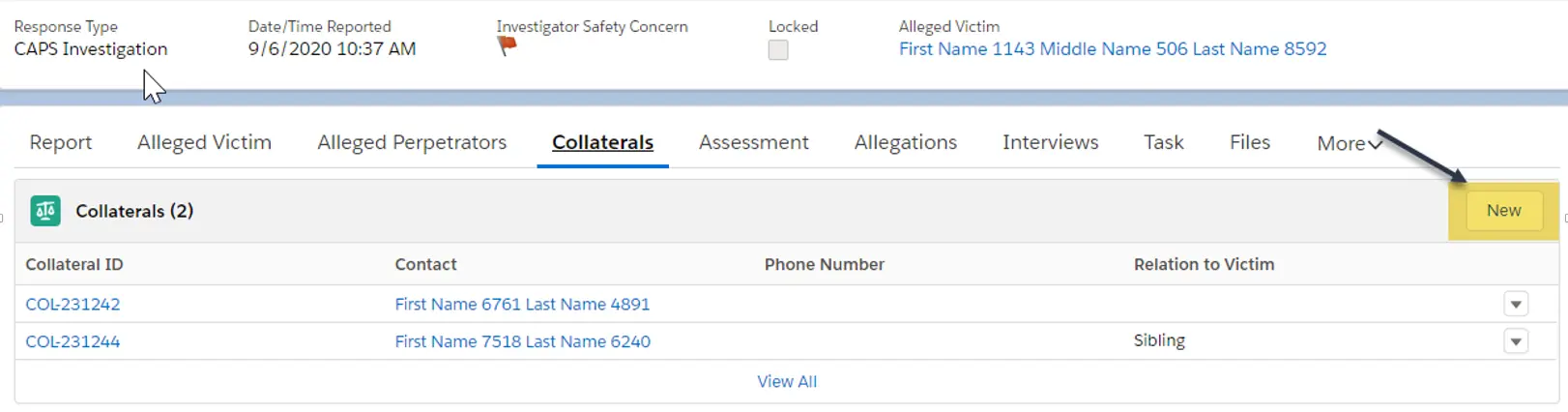
- After clicking into a new collateral, enter the new collateral’s name in the search tab to see if that collateral is already in the system. If so, you can add it from there. If not, click
+ New Contact.

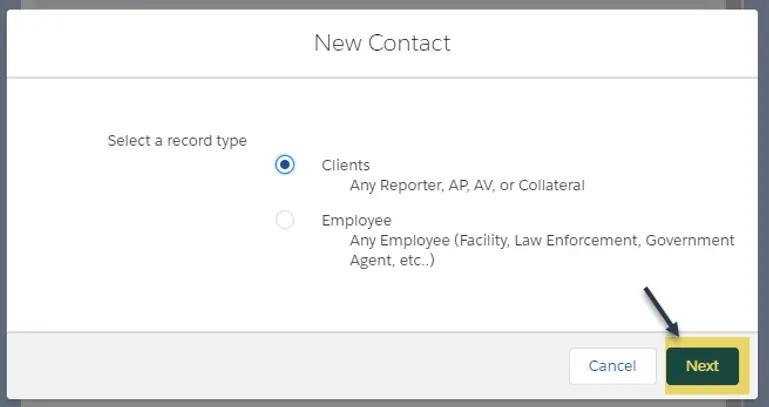
- A popup will appear. Click
Next.
- Enter the information you have on the new collateral. Scroll down the ENTIRE page and fill out all the information for the new collateral. Then click
Save.

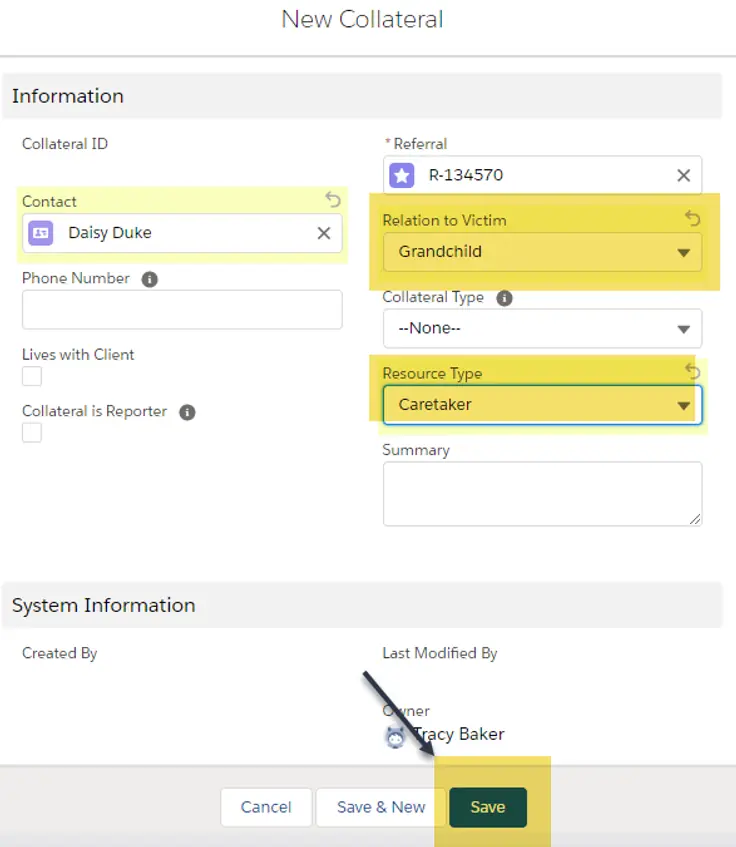
- Once you click
Save, the New Collateral information page will open. Fill out the information and clickSave.
- The new collateral has been added to the case.
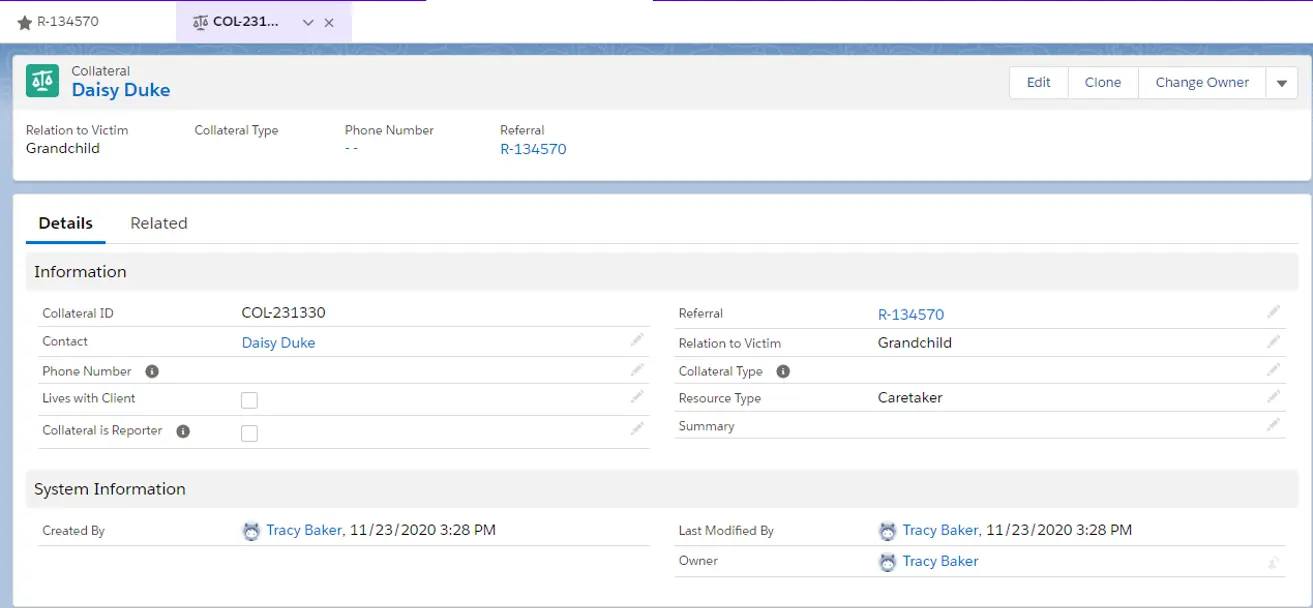
- You can click back into the case and see that your new collateral has been added.
If you have multiple collaterals to add, don’t forget to complete this process for each new collateral.