- After you’ve created the APS-2 and downloaded it to your device, open the APS-2 in Adobe Pro.
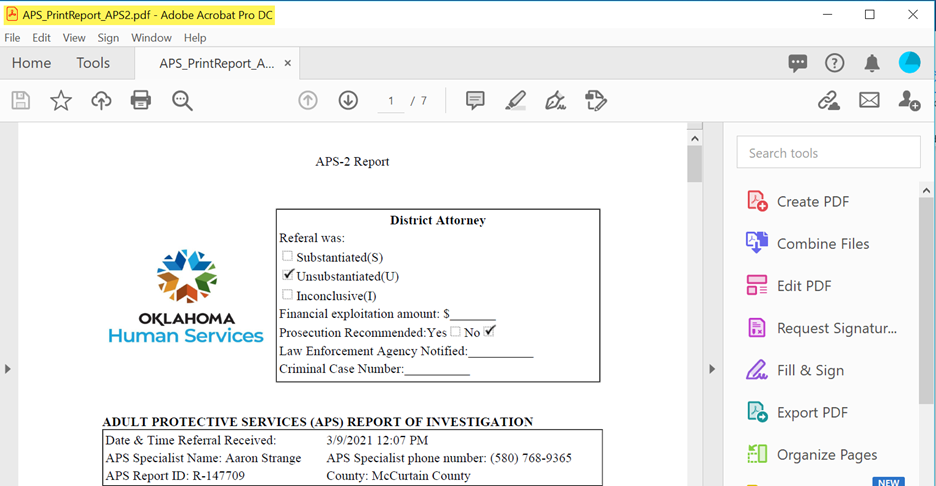
- Click “Combine Files” button from the tools on the right.
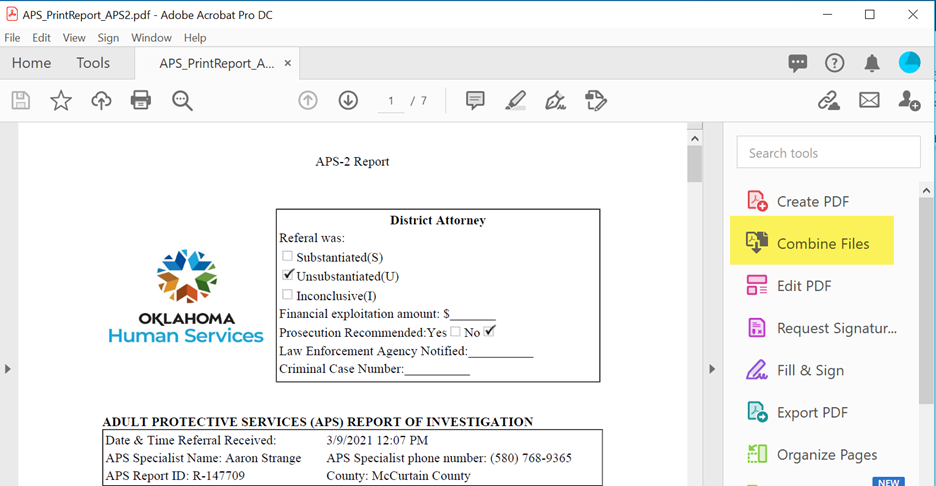
- Click “Add Open Files” to add your APS-2. You are essentially creating a new document to include the APS-2 and other documents, files, pictures, etc.
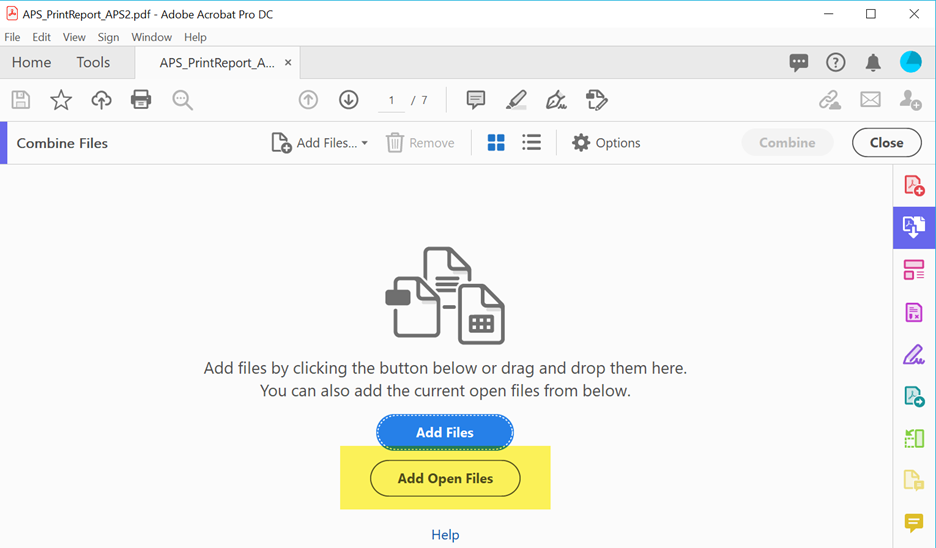
- A popup box will appear. Select “Add Files.”
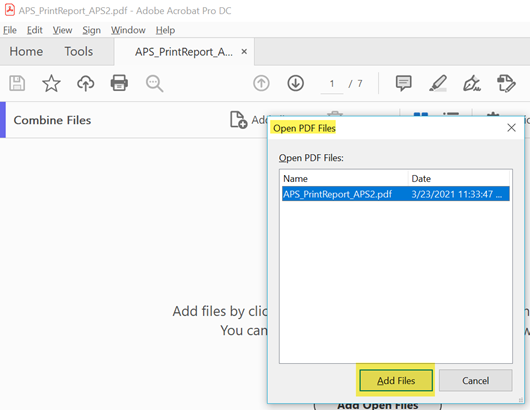
- Click the “Add Files” button at the top then select “Add Files” from the drop down. (You’ll notice the APS-2 appears as one file on the canvas – I placed a yellow star next to it.)
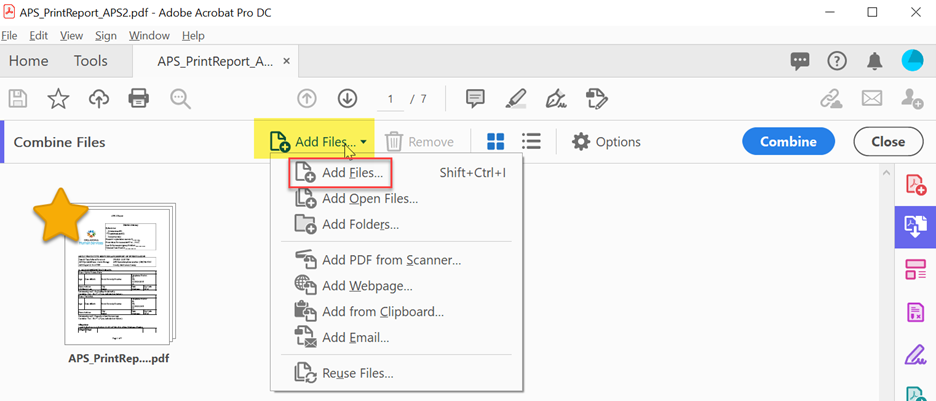
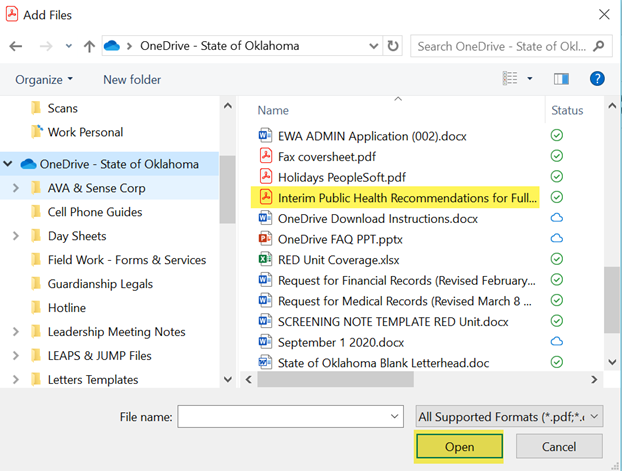
- The file explorer will pop up. Choose whatever files you want added. You can add pictures, Word documents, Excel spreadsheets, etc. Click “Open.” You can add as many items as you want. Just keep repeating steps 5 and 6.
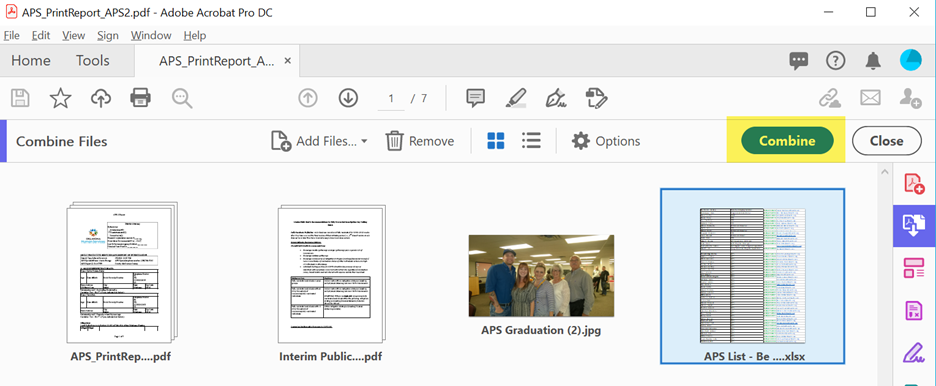
- After you are finished adding files, you will see all the files you added on the canvas. When you are ready to combine your files into one single PDF, click “Combine.”
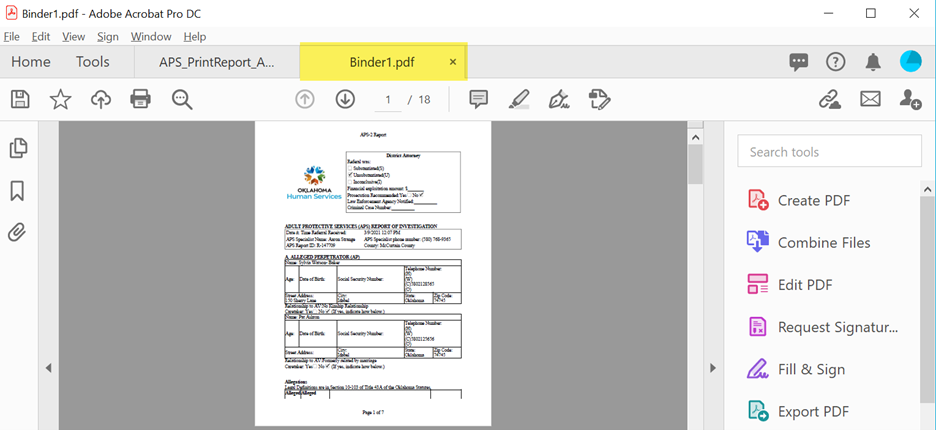
- Now you will notice that your combined files is called “Binder1.pdf.” Go to File, Save As, and save the new combined PDF.
*****All done! You have successfully “attached” files to an APS-2!
